Speak. Finish. Insert.
Start with your dictation shortcut, speak your thought, then finish into the text field you’re working in.
Your voice has a keyboard now.
A voice keyboard for iPhone.
A dictation and writing assistant for Mac.
For the thoughts that move faster than your fingers.
macOS 13+ · Apple Silicon iPhone · TestFlight beta
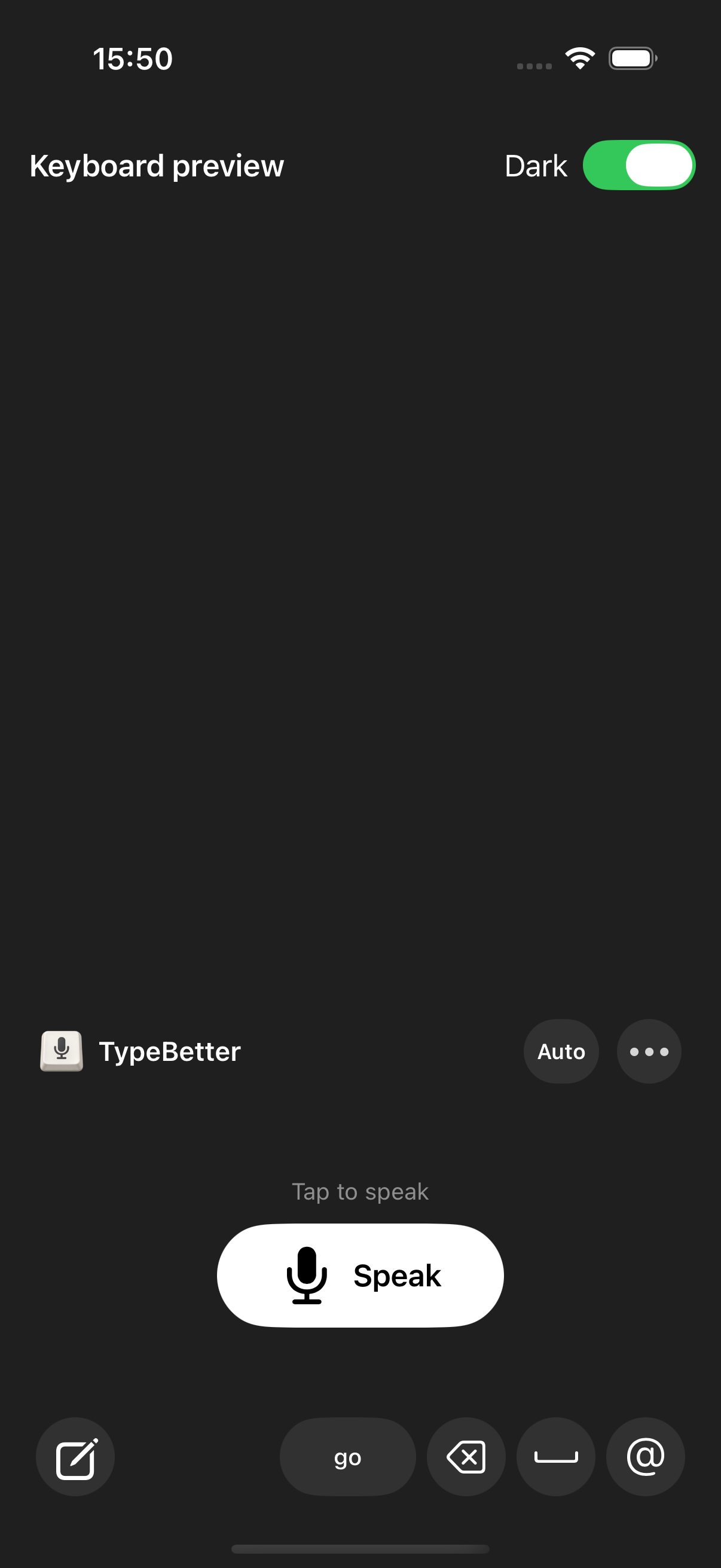
The iPhone keyboard
Tap the middle to finish your dictation. Or finish with an action. Your words arrive the way you need them.
TypeBetterExample dictationTry a finish choice
Three prompt shortcuts. Yours to assign.
You say
“hey can we move the meeting to three ill send the notes beforehand”
Finish · normal dictation
Hey, can we move the meeting to three? I’ll send the notes beforehand.
Use your regular dictation and cleanup settings.
Interactive examples. This page does not record audio or call an AI provider.
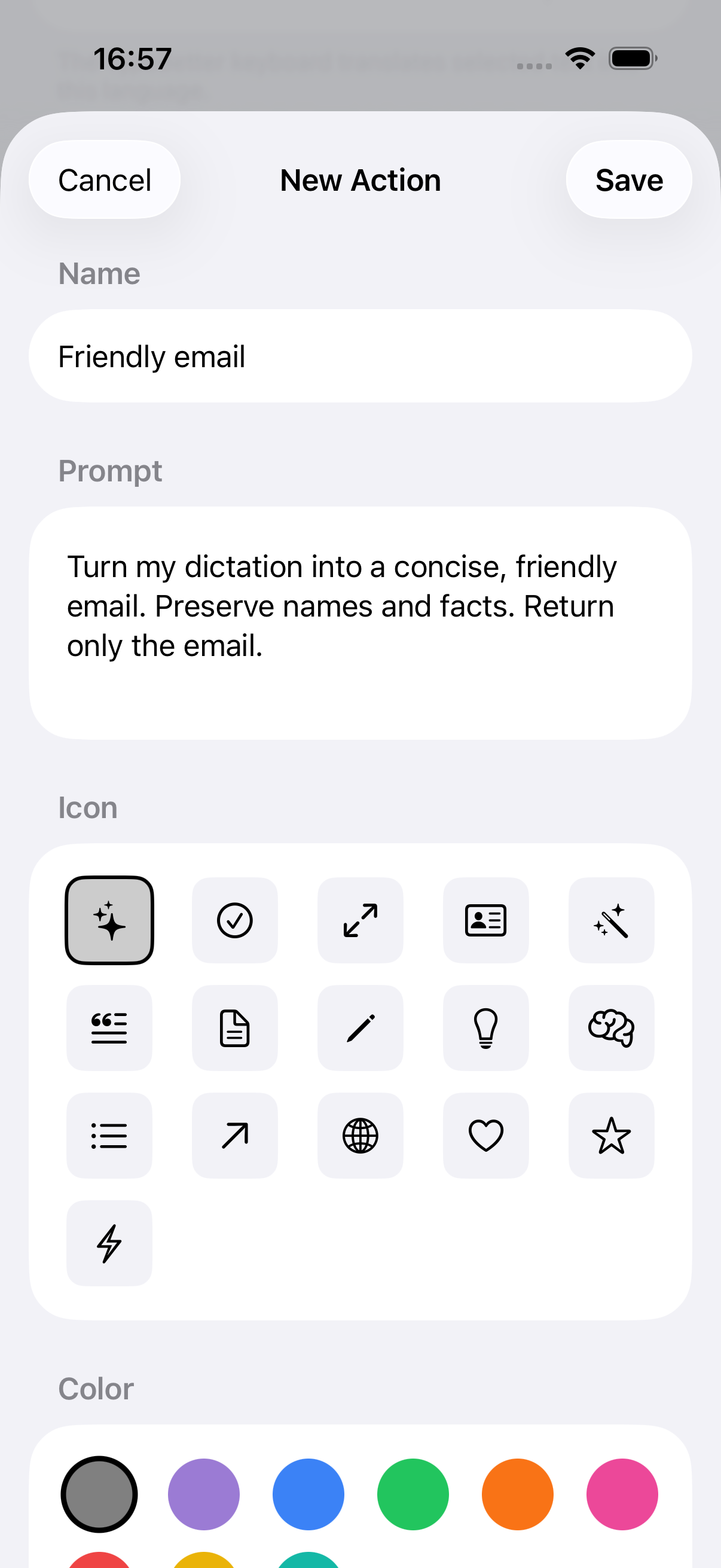
iPhone · your own actions
Turn the things you ask for every day into a button. Give an action a name, a prompt, an icon and a color. Then assign it to one of your three dictation shortcuts.
A few ideas for your own actions
Turn my dictation into a warm, concise email. Keep the meaning, add a friendly greeting, and make it ready to send.
Use Help me write to speak a writing request. Describe the message you need and let your chosen text model compose it.
A little less language friction
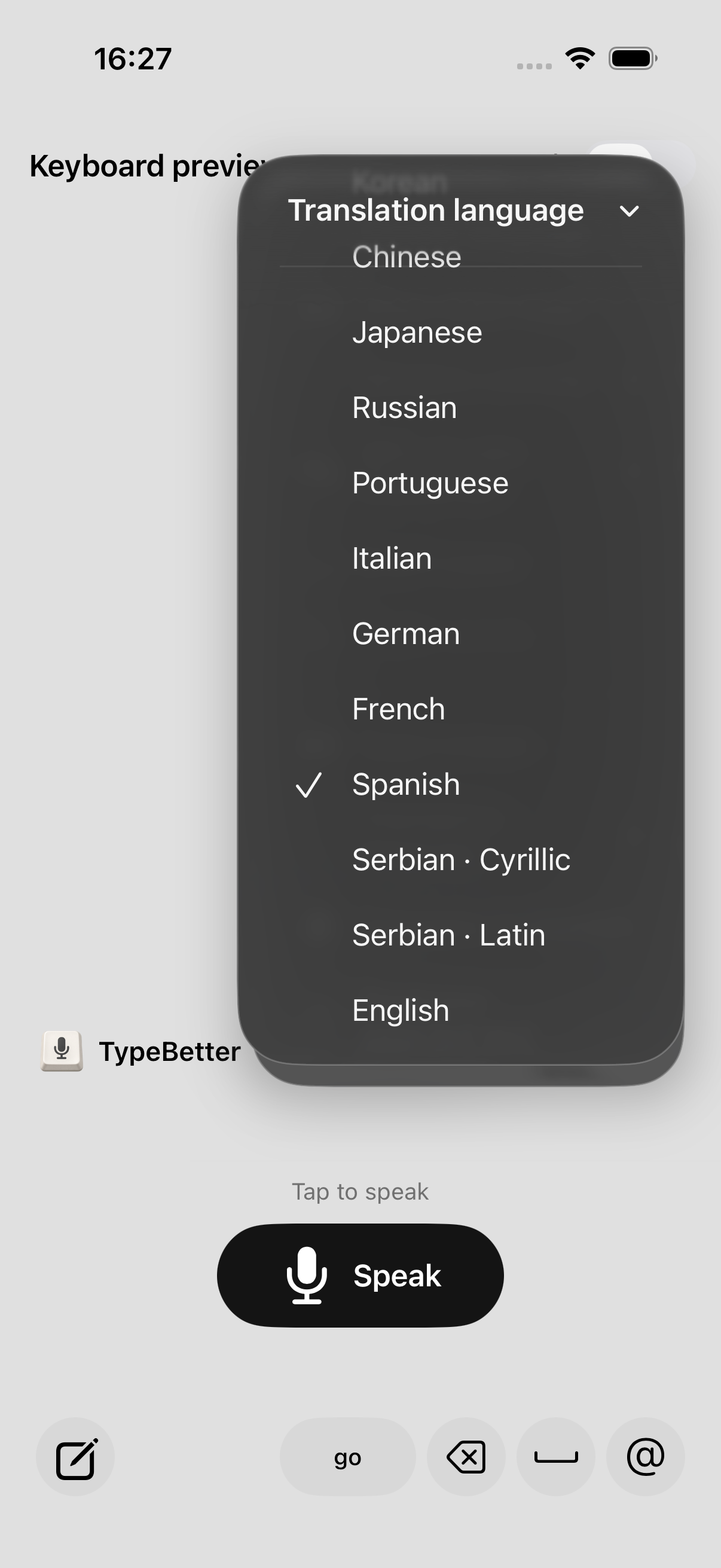
Pick your output language and finish with a translation. Keep a conversation moving, write to a colleague, or send the message you meant to send.
Example · English → Spanish
“See you tomorrow. I’ll bring the coffee.”
Nos vemos mañana. Yo llevo el café.
Choose the language in the keyboard. Translation uses your configured writing model.
TypeBetter for Mac
Dictate into your text field. Open the assistant when you want to rewrite, compose or translate. Keep the work flowing.
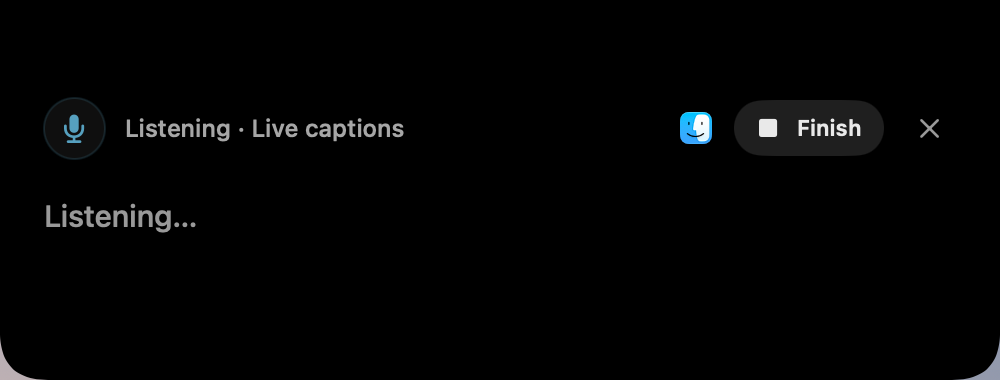
Your recording opens in a small floating panel. Finish when you’re done to insert the transcription into your text field.
Start with your dictation shortcut, speak your thought, then finish into the text field you’re working in.
Rewrite selected text, compose a reply or translate. Save your favorite prompts as Quick Actions. Copy, insert or regenerate the result.
Select text and speak an editing instruction. Or capture an area of your screen to explain, summarize or translate it.
Meetings, too
Record a meeting or import audio. Create a transcript, notes and next steps, then ask questions about selected meetings. Your Mac Library keeps dictations and meetings close.
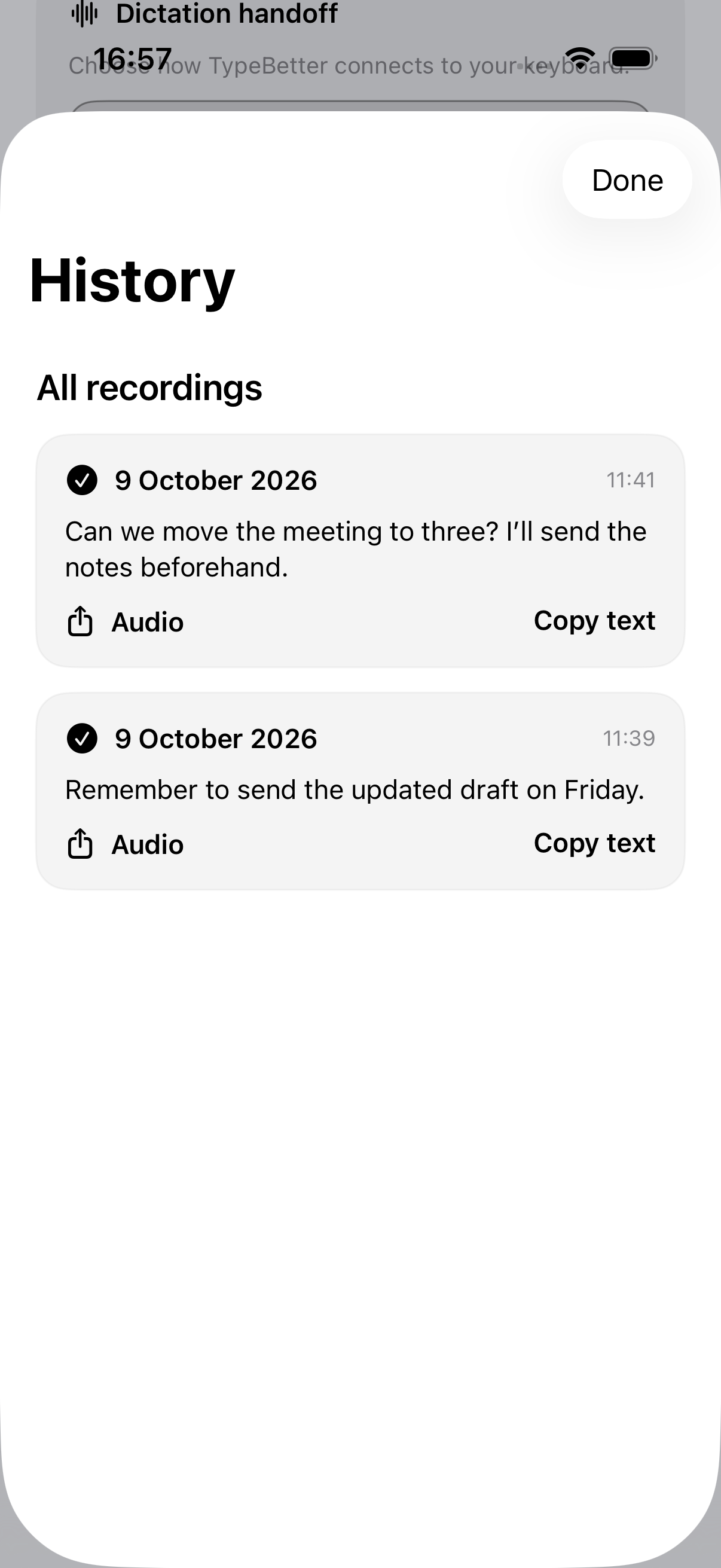
iPhone · History
Find your saved recordings and transcripts in History. Copy the words when you need them again, or share the audio.
If a recording was saved without a transcript, open History to retry transcription.
On Mac, find saved dictations and meetings in your Library.
iPhone · choose your flow
Choose how the keyboard connects. TypeBetter keeps the mode you picked.
Prepare Stay in Flow once, then start and finish clips from the keyboard during the active session. The microphone stops between recordings.
A fresh connection may be needed after a session expires or the app is terminated.
Make it yours
Your cleanup style. Your dictionary. Your instructions. And a microphone key that feels like you.
Original
Preview an iconChoose your Home Screen icon in the iPhone app. The keyboard follows your confirmed choice. This website only changes the preview.
Choose cleanup styles for messages, email and notes, with your own dictation instructions.
Add names, terms and the words you use most to your personal dictionary.
Use a light or dark iPhone keyboard and its letter-key option. Personalize your Mac recording look, too.
A closer look
Simple by choice
Choose the providers and models that work for you. Add your keys in TypeBetter Settings, then get on with your words.
The app is free. Your AI provider bills you separately for usage.
Download TypeBetter for Mac. iPhone is currently available through a TestFlight invitation.
Set up a supported transcription model for speech and a text model for writing actions. They are separate choices.
On iPhone, enable the keyboard and Full Access, allow microphone access, and choose your flow. On Mac, finish guided setup and set your shortcut.
Yes, the app is free with your own AI keys. Provider usage is billed separately by the provider you choose. TypeBetter does not include a hosted AI allowance.
Cloud transcription sends audio to your configured speech provider. Writing actions send the relevant text or request to your configured text provider. Add keys in the app, never on this website. Supported Apple on-device options are also available on compatible Macs; availability depends on hardware, OS, language and model readiness.
Install the beta through your TestFlight invitation, then add TypeBetter in iOS keyboard settings and enable Full Access. Allow microphone access in the app, configure your models and keys, and choose Quick Return or Stay in Flow. Keyboard availability depends on the host app and text field.
Yes. Create custom actions and assign them to three iPhone dictation finish shortcuts. The center remains your ordinary dictation finish, and the translation control uses your chosen language. On Mac, editable Quick Actions give you your own prompt buttons in the assistant.
Quick Return connects through TypeBetter when a new connection is needed. Stay in Flow prepares an active session for repeated dictation from the keyboard. The microphone stops between clips. TypeBetter keeps your selected mode; a fresh connection may be needed after expiry or app termination.
An active call can prevent iOS from making the microphone available to TypeBetter. End the call and try again. An audio-session conflict is different from a transcription failure.
This page does not promise automatic sync between them. iPhone History stores saved recordings and transcripts on iPhone. Mac Library organizes dictations and meetings on Mac.